Recipes

Where’s that recipe I love?

Your recipe collection is always at your fingertips. Whether you're in the kitchen, at the grocery store, or visiting a friend, you can effortlessly access your favorite meals from any device. No more flipping through cookbooks or scrolling endlessly through notes — your recipes are neatly organized, searchable, and ready whenever you need them.

Invite family members to collaborate within the app, where they can add recipes, create meal plans, and build shopping lists together. Want to share a special dish with a friend? Simply send them a link—no account required. Today’s Forkcast makes it simple to cook, connect, and enjoy meals with the people who matter most.

Get Organized Today
Help Topics

Create a new recipe

Manually creating a new recipe is easy.

Manual recipe creation is a two step process. Start by pressing the New Recipe button at the top of the home screen.


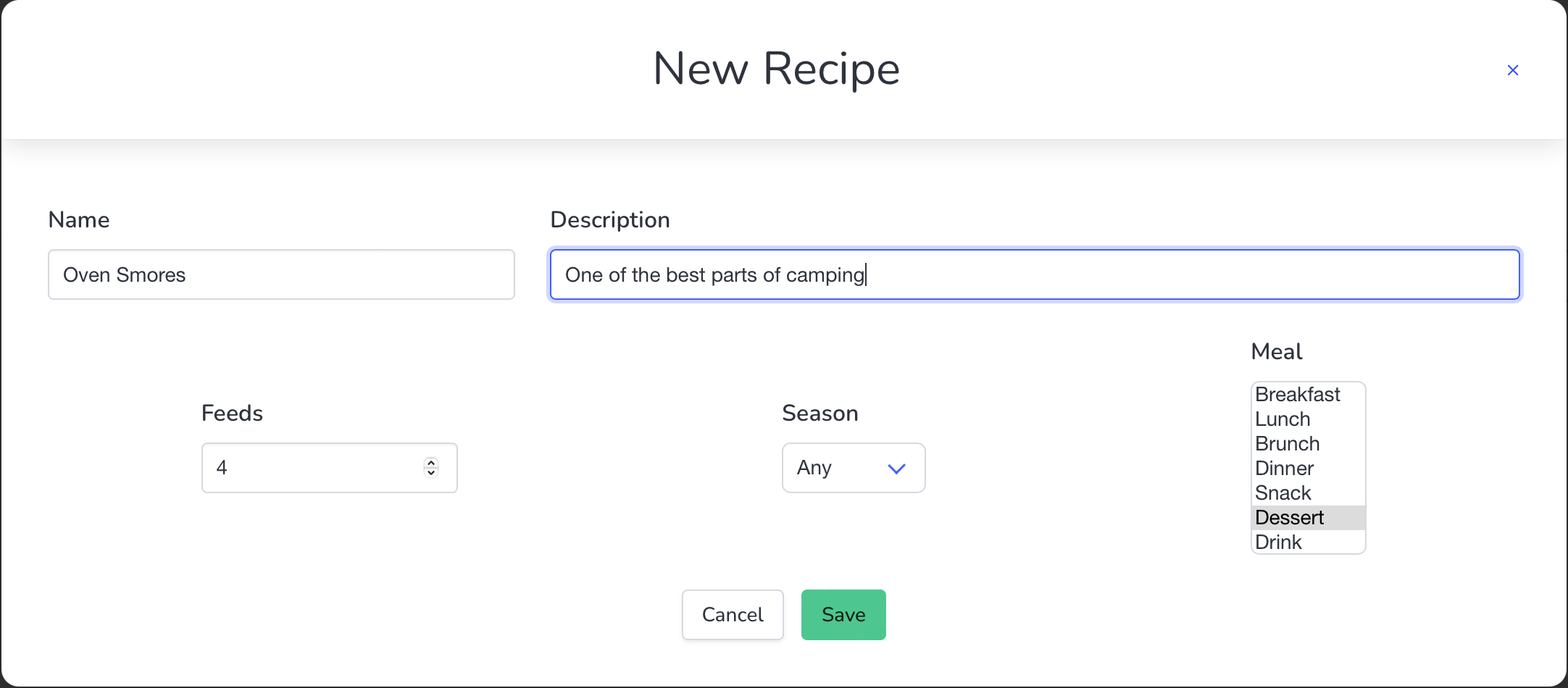
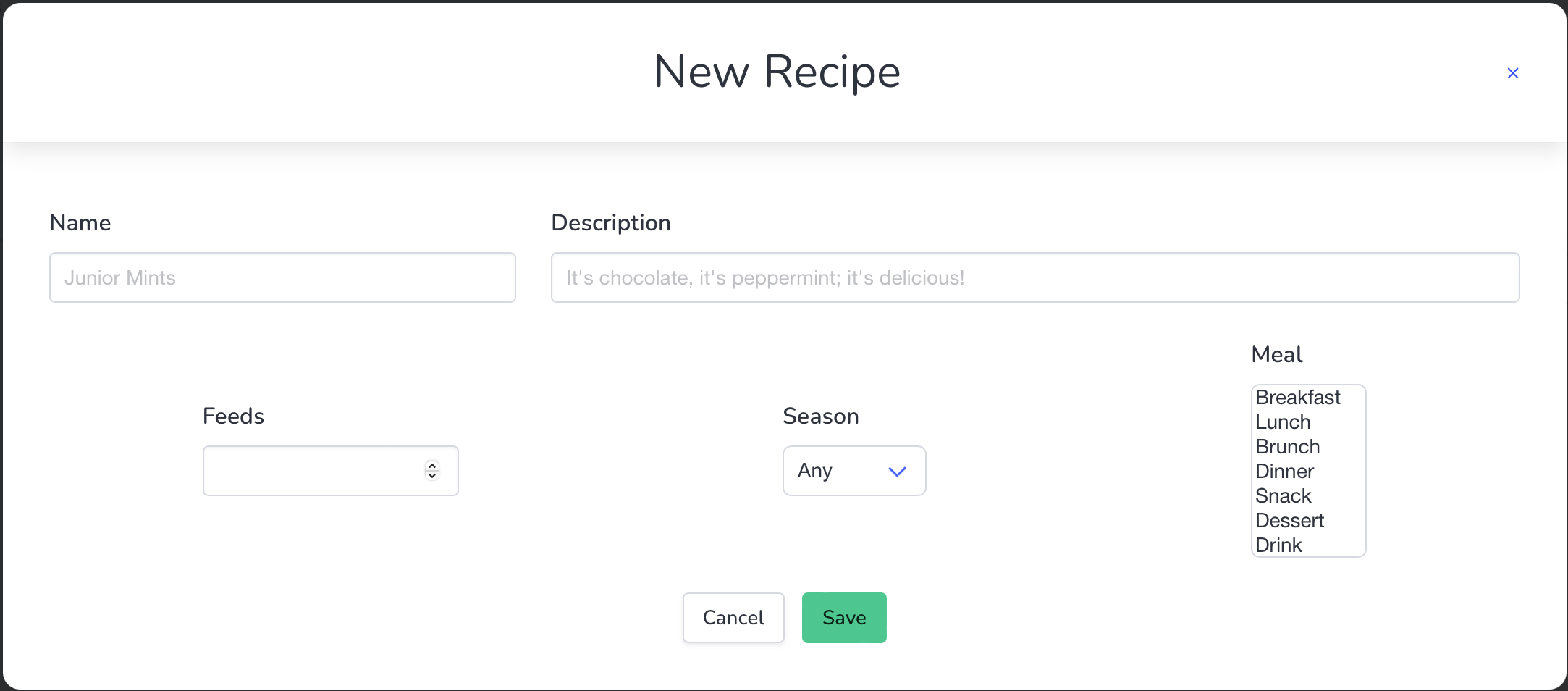
You will be presented with a dialog to collect the overall details of the new recipe. This is the first step.


Give your new recipe a name and tell us how many people it feeds. If you prefer eating this recipe for a specfic meal, in a specific season or both please fill those in.

Only the name and feeds items are required to proceed to the next step and all items can be changed at a later date.


Upon pressing the Save button you are taken to step two: providing the ingredients and instructions.

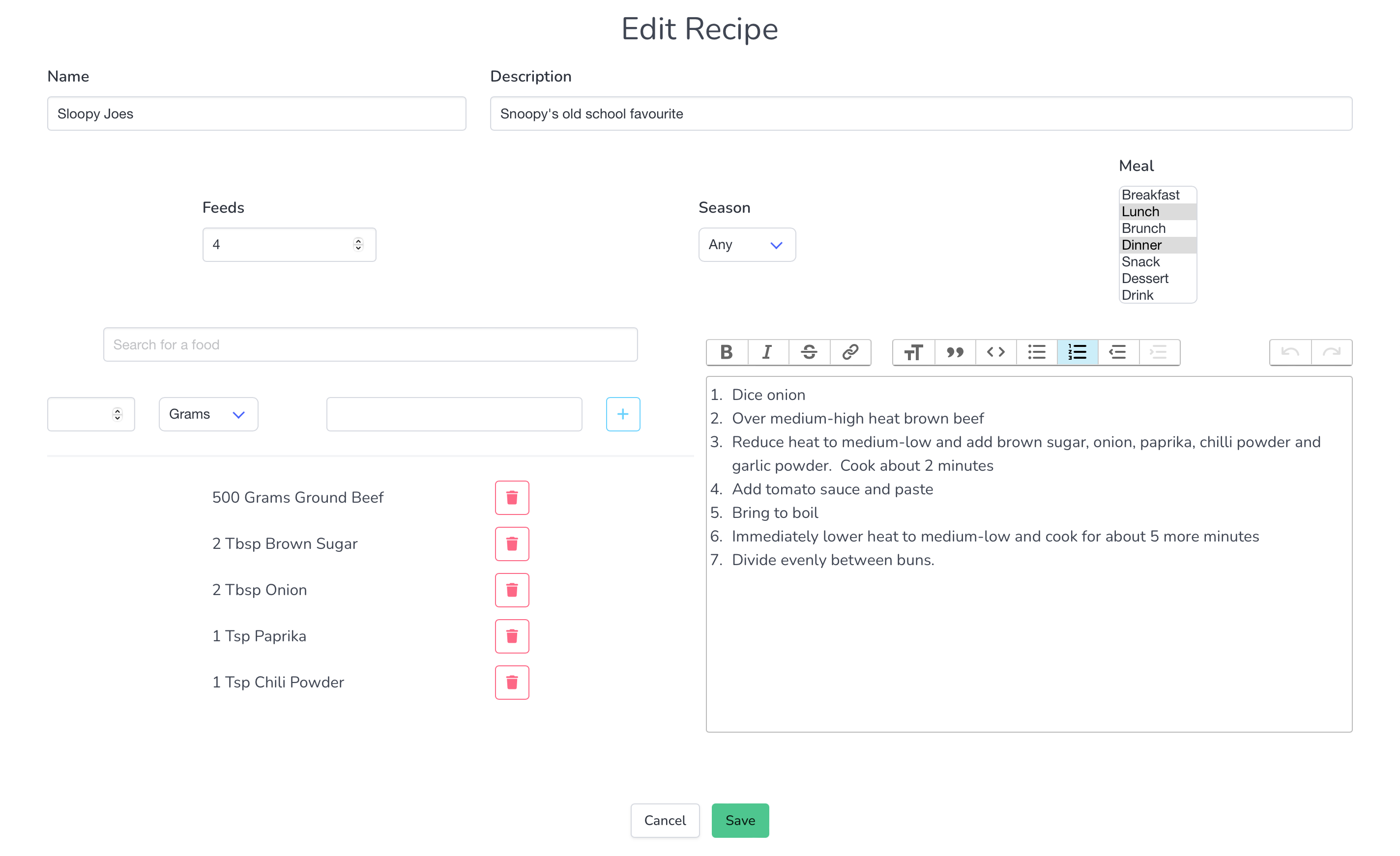
The right hand side of the screen is used for instructions. The left hand side for ingredients.


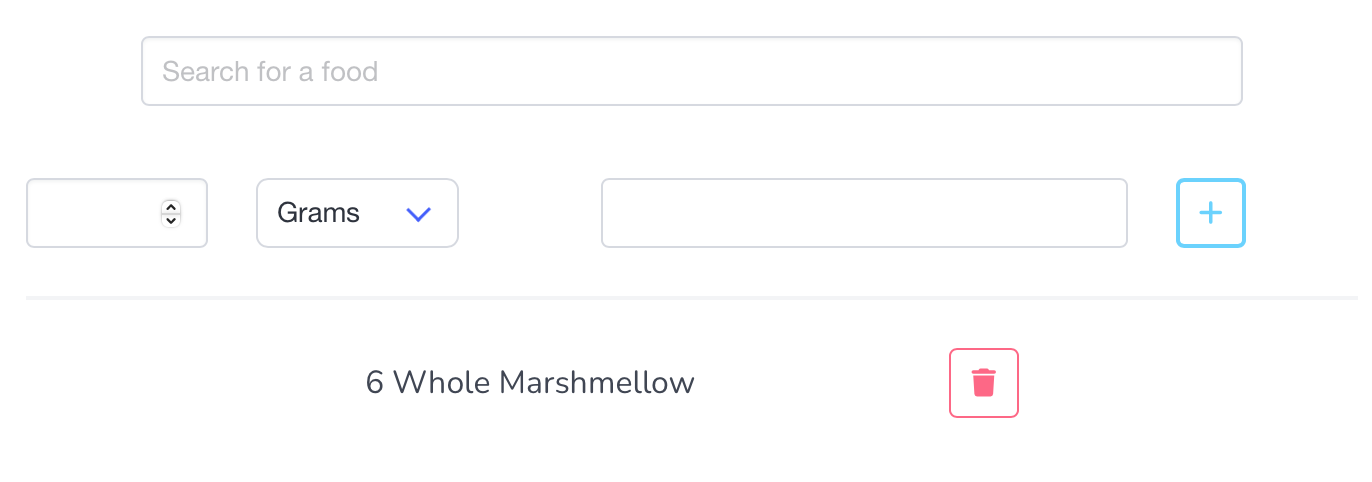
There are three controls used by adding an ingredient to a recipe. First, the food is selected. Next the amount (quantity and unit) is selected. And finally, the ingredient is added to the recipe.


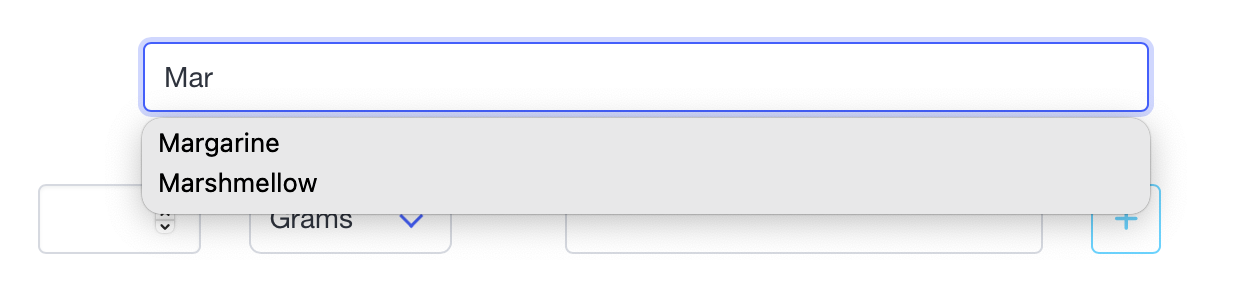
As you type in the food search box you will be presented with options for you to select. If the food you need is presented simply click on the option - this will fill in the search box for you. In the event there are no options, this is a new food, simply enter it.

In either case when you have finished selecting a food press the enter key on your keyboard.


After entering the selected food the ingredient entry will look like this and you are ready to set the quantity for the ingredient.


Add the ingredient to the recipe by either pressing the + button at the end of the row or by pressing then enter key on your keyboard after selecting the unit or quantity.

You will see the ingredient added to the list below.


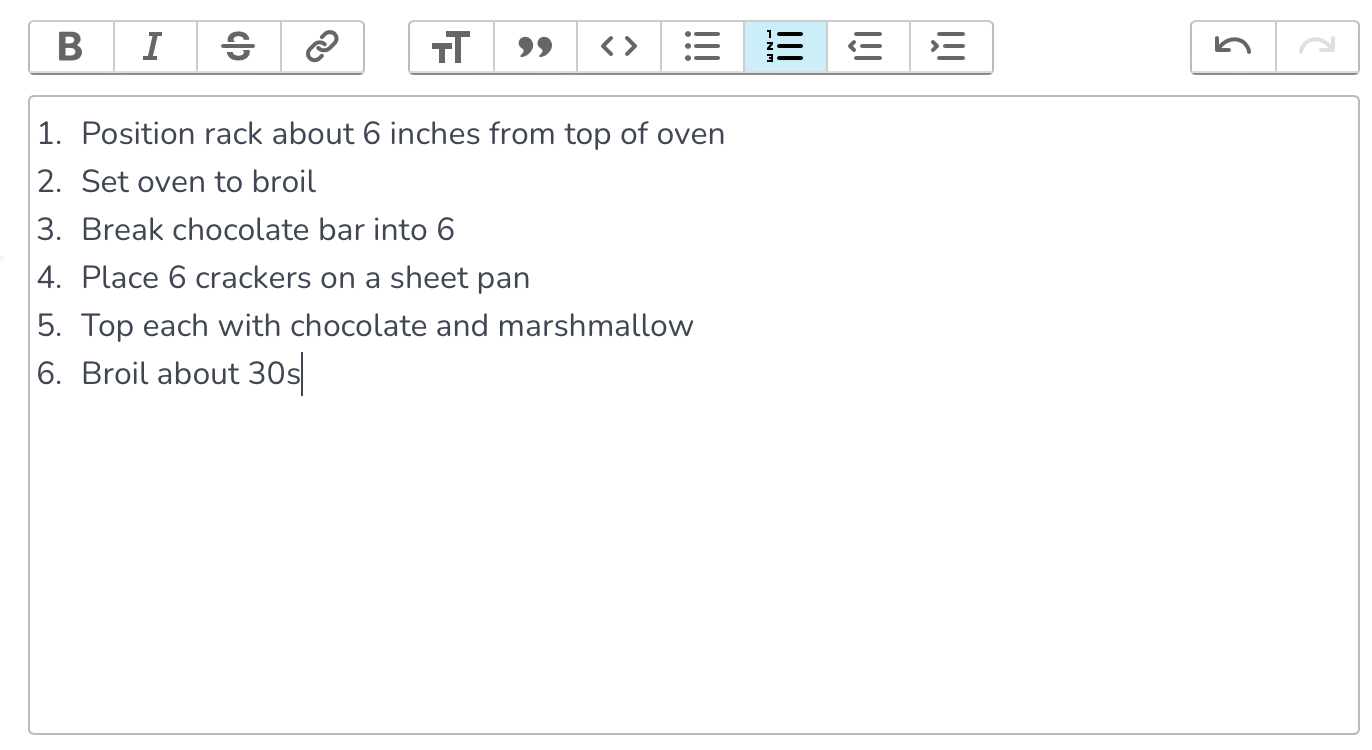
Using the rich text editor supply the instructions for preparing this recipe.


Save the recipe by pressing the Save button at the bottom of the screen.

To contents

Edit an existing recipe

Updating an existing recipe is easy. Start by clicking on the recipe you wish to update from the list provided.

You can filter recipes by searching for their name or by the meal or season they are associated with.


Press the Edit Recipe button to begin making updates.


Make whatever changes you need. The controls work exactly the same way here as when you are creating a new recipe.


Save the recipe by pressing the Save button at the bottom of the screen.

To contents